HighLevel / Tracking / Attribution
UTM Parameters in HighLevel: The Complete Guide to Tracking Every Lead Source
How to plan, add and analyze UTM parameters in HighLevel across email, Meta, Google, LinkedIn, TikTok, organic social, SMS and QR codes, so every lead and every deal shows where it came from.
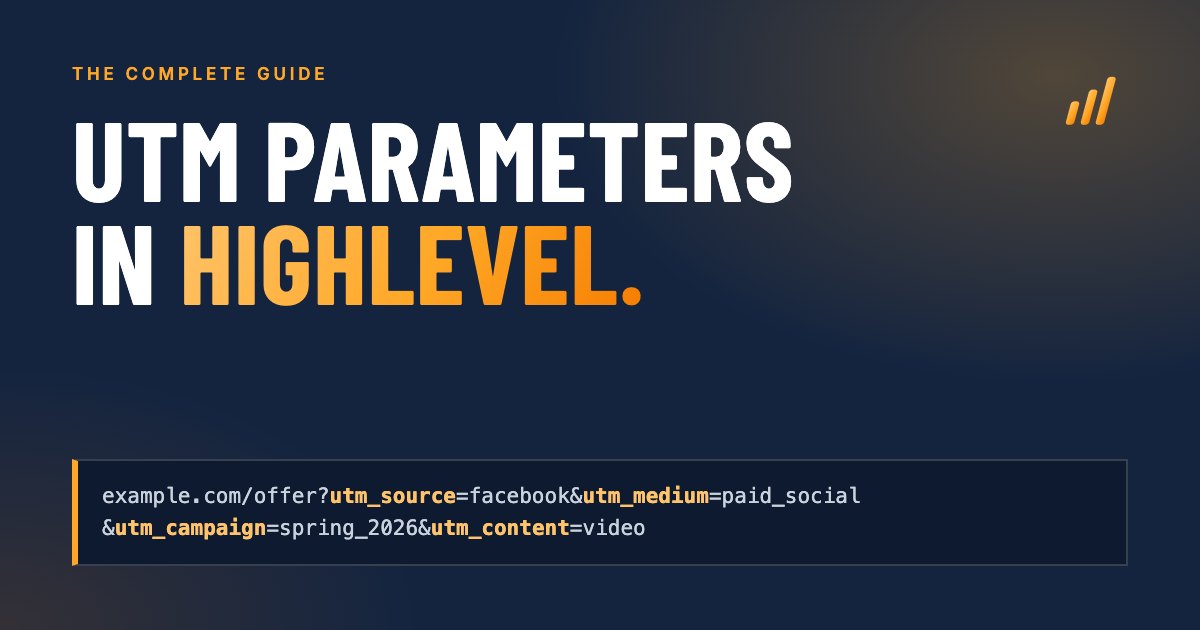
UTM parameters are small tags added to the end of a link that tell your CRM and your analytics where a visitor came from. In HighLevel they decide what shows up as a contact’s source, which campaigns get credit for leads, and whether your dashboards can connect ad spend to booked calls and closed deals. Get them right once and every lead arrives with its origin attached. Get them wrong and “Direct Traffic” or “Third-Party” quietly swallows your best campaigns.
Most guides on this topic stop at HighLevel’s email settings. This one covers the whole path: what UTM parameters are, how HighLevel captures them, how to plan a naming system that holds up, how to tag every channel you use (email, Meta, Google, LinkedIn, TikTok, organic social, SMS, QR codes and more), what to avoid, and how to read the results inside HighLevel.
The short version: decide on a lowercase naming convention before you tag anything, tag every link that points to your site from outside it, let HighLevel’s forms, calendars and tracking script capture the values, and report on them with Attribution filters on your dashboards. Add custom UTM fields only when you need to search, segment or automate by source, because the built-in attribution is not a contact field.
What are UTM parameters?
UTM parameters are key and value pairs added after a question mark at the end of a URL, such as ?utm_source=facebook&utm_medium=paid_social. When someone clicks the link, the parameters travel with them to the landing page, where HighLevel and Google Analytics read them and record where the visit came from.
UTM stands for Urchin Tracking Module, named after Urchin, the analytics company Google bought in 2005 and turned into Google Analytics. The name stuck, and the format is now read by almost every analytics tool and CRM, HighLevel included.
A tagged link looks like this:
https://example.com/free-estimate?utm_source=facebook&utm_medium=paid_social&utm_campaign=spring_insulation_2026&utm_content=video_testimonial
The part before the ? is the page. Everything after it is tracking. The page itself does not change; the visitor sees the same content either way.
The five standard UTM parameters
| Parameter | What it answers | Example values | Required |
|---|---|---|---|
utm_source | Who sent the visitor? The site, platform or list. | facebook, google, newsletter, linkedin | Yes |
utm_medium | What type of channel was it? | paid_social, cpc, email, social, sms | Yes |
utm_campaign | Which campaign or promotion? | spring_insulation_2026, webinar_oct | Yes |
utm_content | Which ad, creative or link? | video_testimonial, header_button | Optional |
utm_term | Which keyword or audience? | spray_foam_insulation, lookalike_1pct | Optional |
Google Analytics 4 also recognizes utm_id (a campaign ID), utm_source_platform, utm_creative_format and utm_marketing_tactic. The first two are reported in GA4; the last two are accepted but not shown in standard reports. HighLevel’s native attribution fields focus on the five standard parameters plus ad and click identifiers, so the five above are the ones to get right first.
What UTM parameters do not do
UTM parameters do not track anything on their own. They are labels. Something on the landing page has to read them and store them: a HighLevel form, calendar, chat widget or order form, HighLevel’s External Tracking script on an outside website, or Google Analytics. A tagged link that lands on a page with nothing listening is a label nobody reads.
They also do not follow a person forever. They describe the visit they arrived with. That is why HighLevel keeps both a first and a latest attribution for each contact, covered below.
How does HighLevel capture UTM parameters?
HighLevel records attribution when a contact converts through one of its capture points, within the same browser session as the tagged visit:
- a form or survey submission
- a calendar booking
- a chat widget, once the visitor has submitted their contact details
- a one-step or two-step order form
At that moment HighLevel reads the full page URL, the UTM parameters, click IDs such as gclid and fbclid, and the referring site, and saves them on the contact. You see the result on the contact record, in the right-hand column under the Activity tab.
Two details from HighLevel’s documentation are easy to miss. The conversion has to happen on the page the visitor landed on, or later in the same session: if a redirect sits between the tagged link and your form, the parameters can be lost, and HighLevel suggests a pop-up form on the landing page as a workaround. And the attribution only exists because of a conversion; a tagged visit that never fills anything in leaves nothing on a contact.
First Attribution and Latest Attribution
Every contact carries two attribution records:
- First Attribution: recorded from the contact’s first interaction with your account, such as their first form submission. It stays as it is.
- Latest Attribution: recorded from the most recent interaction, and updated with each new one. If someone first filled out a form from an ad and books a call from a newsletter link months later, the first attribution still shows the ad and the latest shows the newsletter.
Both matter. First attribution tells you which channels bring new people in. Latest attribution tells you which channels bring existing contacts back to act.
One thing to know before you rely on them: First and Latest Attribution are not contact fields. They are records attached to the contact, readable on the contact and usable in reports and dashboard widgets, but you cannot search the contact list by them, edit them, or use them like a field. When you need that, you need custom fields as well, covered in When do you need custom UTM fields in HighLevel?
Session Source: how HighLevel sorts traffic
Alongside the raw UTM values, HighLevel classifies each attribution into a Session Source. It checks the full page URL and the referring domain against these rules, in this order, and uses the first one that matches:
| Order | Rule | Session Source |
|---|---|---|
| 1 | utm_source contains adwords | Paid Search |
| 2 | The URL has a gclid, wbraid, gbraid or msclkid click ID | Paid Search |
| 3 | The URL has UTM parameters and the referring domain is google.com | Paid Search |
| 4 | utm_source contains fb_ad, linkedin_ad, twitter_ad or reddit_ad, or the URL has a ctwa_clid (click to WhatsApp) | Paid Social |
| 5 | The referring domain is a social media site | Social Media |
| 6 | The referring domain is a search engine (Google, Bing, Yahoo, DuckDuckGo) | Organic Search |
| 7 | Any other referring domain | Referrals |
| 8 | No referring domain and no tracking parameters | Direct Traffic |
| 9 | An incoming call, SMS, email, WhatsApp or Facebook message | Others |
| 10 | The contact was created by hand inside HighLevel | CRM UI |
| 11 | The contact was created by an integration such as Zapier | Third-Party |
For Organic Search, HighLevel shows the search keyword when it is available and “Unknown (SSL)” when the search engine hides it, which is most of the time today.
This matters for your naming, and it is the part most guides miss. HighLevel’s Session Source recognizes paid social by specific source values like fb_ad, while Google Analytics recognizes paid social by a social source such as facebook combined with a medium starting with paid. A Facebook ad tagged utm_source=facebook still lands in HighLevel with all its UTM values, but its Session Source becomes Social Media rather than Paid Social. More on how to choose in the planning section.
Capturing UTM parameters on websites outside HighLevel
If your website is built on WordPress, Webflow or anything else, HighLevel needs its External Tracking script to see visits and form submissions there. You find it under Settings, External Tracking, copy the script and paste it before the closing </body> tag on every page of your site. It captures UTM parameters, page URLs and session data, and it detects standard HTML forms, including Gravity Forms, WPForms and Contact Form 7.
Two limits to know:
- Forms inside iframes are not supported by External Tracking. That includes many third-party form widgets.
- Field matching: External Tracking matches the fields of an outside form to your contact fields by name and label. A hidden input named
utm_sourceon your WordPress form can fill a custom field with the same name, which is how you get UTM values into searchable fields from an outside site. - HighLevel forms embedded on your site load inside an iframe. HighLevel’s embed script is designed to let the form read the parent page, but test it: submit the form from a tagged URL and check the contact. If the UTM values are missing, add hidden fields for each UTM parameter to the form and pass the page’s parameters into the embedded form’s URL.
Contacts created by Zapier, Make, the API or a CSV import arrive as Third-Party with no browser data, because no browser session was involved. If you create contacts that way, pass the UTM values along as fields in the same step.
How should you plan your UTM parameters?
Plan UTM parameters by writing a short naming convention before you tag a single link: a fixed list of allowed sources and mediums, one pattern for campaign names, and a rule for content and term. Keep it in one shared sheet, use lowercase with underscores, and never invent a new value on the fly.
UTM data is only as useful as it is consistent. Facebook, facebook, fb and facebook.com are four different sources in every report. Nobody spots the split until someone asks why Facebook leads dropped by half, and the answer is that half of them are filed under a different spelling.
Step 1: Decide which report is your source of truth
Before choosing values, decide where you will answer the question “which channel brought this lead?”
For ads, there are two workable conventions, and HighLevel’s own help articles recommend one of them.
Option A: HighLevel’s templates. HighLevel’s documentation gives specific templates for its attribution to classify ads correctly. For Meta: utm_source=fb_ad, utm_medium={{adset.name}}, utm_campaign={{campaign.name}}, utm_content={{ad.name}}, plus campaign_id={{campaign.id}}. For Google: utm_source=adwords, with the ad name in utm_medium, the campaign name in utm_campaign, the ad group name in utm_content, plus utm_keyword, utm_matchtype, campaign_id, ad_group_id and ad_id. HighLevel’s troubleshooting advice is to stick to its templates rather than invent your own.
- Pros: Session Source shows Paid Search and Paid Social correctly, and HighLevel’s ad reporting and the UTM Campaign ID, Ad Group ID and Ad ID filters all work.
- Cons: Google Analytics does not recognize
fb_adoradwordsas sources, and an ad set name inutm_mediumputs your ads outside GA4’s paid channels.
Option B: GA4-friendly values (utm_source=facebook, utm_medium=paid_social), described in the rest of this guide.
- Pros: GA4 and most other analytics tools classify the traffic correctly, and every channel follows one consistent logic.
- Cons: in HighLevel, Facebook ads show a Session Source of Social Media instead of Paid Social. You report on the UTM Source and UTM Medium filters instead, which works well: HighLevel’s text-based UTM filters use “contains”, so a filter on
facebookcatches every Facebook campaign.
Which to choose: if HighLevel is where you judge your marketing (most owner-led businesses, because HighLevel is where leads turn into opportunities and revenue), use Option A for Meta and Google ads, and GA4-friendly values for everything else. Google Ads auto-tagging still sends the gclid that GA4 needs for its Google Ads reports. If Google Analytics is where you judge your marketing, use Option B everywhere and report in HighLevel through the UTM filters.
Step 2: Fix your source and medium lists
Write down every channel you use and give each one exactly one source and one medium. A starting point that works in HighLevel and GA4:
| Channel | utm_source | utm_medium |
|---|---|---|
| Facebook ads | facebook | paid_social |
| Instagram ads | instagram | paid_social |
| Google search ads | google | cpc |
| Microsoft (Bing) ads | bing | cpc |
| LinkedIn ads | linkedin | paid_social |
| TikTok ads | tiktok | paid_social |
| Organic Facebook posts | facebook | social |
| Organic LinkedIn posts | linkedin | social |
| Google Business Profile | google | organic_gbp |
| Email newsletter or campaign | newsletter | email |
| SMS campaign | sms | sms |
| QR code on print | print or the item name | qr |
| Partner or referral site | the partner’s name | referral |
Two notes on the table. If you chose Option A, replace the Facebook, Instagram and Google ads rows with HighLevel’s templates and keep the rest. And Google Analytics puts a medium of qr or organic_gbp into “Unassigned” unless you set up a custom channel group, which is fine if HighLevel is your main report.
Step 3: Choose one campaign naming pattern
A reliable pattern reads from general to specific and always has the same parts in the same order:
[offer or topic]_[audience or location]_[yyyy]_[mm]
For example free_estimate_shawano_2026_09 or spring_webinar_owners_2026_03. Dates in campaign names make reports sortable and stop two campaigns a year apart from merging.
Step 4: Use content and term for the detail
utm_contentseparates creatives or placements within a campaign:video_testimonial,carousel_before_after,header_button,footer_link.utm_termholds the keyword for search ads and the audience for social ads:lookalike_1pct,retargeting_site_30d.
Step 5: Keep a UTM log
One spreadsheet with a row per tagged link: date, channel, the full URL, each parameter, who created it and where it was used. It takes a minute per link and saves hours when a number in a report does not make sense six months later.
When do you need custom UTM fields in HighLevel?
You need custom UTM fields when you want to search, filter, automate or export by lead source. HighLevel’s built-in First and Latest Attribution are enough for reporting and dashboards, but they are not contact fields: you cannot search the contact list or build a smart list by them, use them in workflow conditions, or change them.
Most accounts end up using both. The built-in attribution does the reporting with no setup; the custom fields make the source usable everywhere else.
What the built-in attribution does, and what it does not
| You want to… | Built-in First and Latest Attribution | Custom UTM fields |
|---|---|---|
| See where one contact came from | Yes, on the contact under Activity | Yes, on the contact’s fields |
| Report leads and deals by source in dashboards | Yes, with Attribution filters on contact and opportunity widgets | Possible, but the built-in filters are made for it |
| Keep first touch and latest touch separately | Yes, automatically | Only if you set up two sets of fields |
| Search the contact list or build a smart list by source | No | Yes |
| Branch a workflow by source (if Google Ads, then…) | No | Yes |
| Use the source in a message, webhook or integration | No | Yes, as a merge field such as {{contact.utm_source}} |
| Export contacts with their source | Not with the standard contact export | Yes, like any other field |
| Record a source when there is no web visit (Zapier, API, imports, lead ads) | No, these show as Third-Party | Yes, if the integration fills the fields |
Record extra parameters (gclid, fbclid, your own keys) | Partly, click IDs are read for classification | Yes, one field per parameter |
Use the built-in attribution when
- you mainly want to know which channels bring leads and deals, and dashboards answer that for you
- your leads convert on HighLevel forms, surveys, calendars, chat or order forms, or on an outside site with External Tracking
- nobody needs to search, segment or automate by source
Add custom UTM fields when
- sales or support need to find contacts by source, for example every lead from a specific campaign this month
- a workflow should act on the source: a different pipeline for Google Ads leads, a different follow-up for referral partners, an internal notification for high-value campaigns
- the source has to leave HighLevel: in a webhook, a Zapier step, a spreadsheet export or a report for someone without dashboard access
- contacts arrive without a browser session, from Zapier, Make, the API, a CSV import or a platform’s lead form, and the integration can pass the campaign along
- you want to keep a parameter HighLevel does not store as attribution, such as the
gclidfor uploading offline conversions back to Google Ads
How to set up custom UTM fields
- Create the fields. Go to Settings, Custom Fields and add a folder such as “Lead source”. In it, create one single-line text field per parameter: UTM Source, UTM Medium, UTM Campaign, UTM Content and UTM Term. Add GCLID and FBCLID if you run Google or Meta ads. Note each field’s key, such as
{{contact.utm_source}}. - Add them to your forms as hidden fields. In the form builder, drag each UTM field into the form and set it to hidden, so visitors never see it.
- Match each field to its URL parameter. In the field’s settings, set the query key to the exact parameter name, such as
utm_source. HighLevel fills form fields from matching URL parameters when the form loads, so a visit to?utm_source=facebookputsfacebookinto the hidden field. Keys are case sensitive. - Repeat for every form, survey and order form that collects leads. A form without the hidden fields submits empty values.
- Test. Open the form’s page with a tagged URL, submit a test entry, and check both the custom fields and the Activity attribution on the new contact.
Keep a first-touch copy that never changes
A hidden field is filled on every submission, so a contact who converts twice has their UTM fields overwritten by the second visit. If you want a permanent first touch in fields as well, create a second set, such as “First UTM Source” and “First UTM Campaign”, and a short workflow:
- Trigger: Form Submitted (or Contact Created).
- If/Else: First UTM Source is empty.
- If yes, Update Contact Field: set First UTM Source to
{{contact.utm_source}}, and the same for the other fields.
The regular UTM fields then act as your latest touch, the “First” fields as your first touch, and both are searchable.
Make sources easy to filter with tags
Tags are the quickest thing to filter on in smart lists and workflows. A workflow that runs after each form submission can add a tag from the source, such as source: google ads or source: facebook ads, using If/Else branches on the UTM Source field. Keep the tag list short and use it for the few channels that matter; the fields hold the detail.
How do UTM parameters work in HighLevel email campaigns?
HighLevel can add UTM parameters to every link in your email campaigns automatically. Turn it on under Email Marketing, Settings, Tracking. HighLevel then appends utm_source, utm_medium and optionally utm_campaign to your links, plus up to five custom parameters of your choice.
The default email parameters
| Parameter | HighLevel default | Can you change it? |
|---|---|---|
utm_source | email | No, it is fixed |
utm_medium | email marketing | Yes |
utm_campaign | Campaign name and send date | Yes, choose from the options, or leave it out |
| Custom parameters | None | Add up to five with your own values |
How to set it up
- Go to Email Marketing, then Settings, then the Tracking option for email campaigns.
- Switch UTM tracking on. It now applies to all email campaigns by default.
- Change
utm_mediumfromemail marketingtoemail. HighLevel’s own guidance is to avoid spaces in values, and a single-word medium matches GA4’s email channel and every other tool without encoding issues. - Choose what
utm_campaignshould contain. The campaign name plus send date keeps separate sends apart in reports. - Click Add Custom Parameter for anything extra, for example
utm_content=newsletterto tell newsletters apart from one-off promotions. Tick the parameters you want included. - For a single campaign that should not be tagged, turn tracking off on that campaign’s Send or Schedule page.
- Send a test campaign to yourself, click each link and check the URL in the browser before sending to your list.
Limits to know about email UTMs
- Trigger links are not tagged. HighLevel states that UTM parameters do not work with trigger links in the current release. If a link needs to be tracked in reports, use a normal link.
- Links need a full URL starting with
https://and correct syntax, or the parameters may not be appended properly. - The setting covers email campaigns. Links in workflow emails and in SMS are not covered by it. Tag those URLs yourself, using the same convention.
How do you use UTM parameters beyond email?
Email is the easy part, because HighLevel tags the links for you. Most leads come from ads, social posts, search and offline material, and each of those channels needs its own tagging method. Below is how to tag each one so the values reach HighLevel intact.
Meta ads (Facebook and Instagram)
Meta has a dedicated URL parameters field at the ad level, under the destination, and supports dynamic values that it fills in automatically at click time. Add this to the URL parameters field rather than to the website URL itself:
utm_source=facebook&utm_medium=paid_social&utm_campaign={{campaign.name}}&utm_content={{ad.name}}&utm_term={{adset.name}}
Meta’s dynamic parameters are {{campaign.name}}, {{campaign.id}}, {{adset.name}}, {{adset.id}}, {{ad.name}}, {{ad.id}}, {{placement}} and {{site_source_name}}. The last one returns fb, ig, msg or an (Audience Network), which you can use as the source if you want Facebook and Instagram split automatically.
Meta also appends its own fbclid click ID. HighLevel stores it, but the UTM parameters are what make campaigns readable in your reports. Because Meta fills names in dynamically, name your campaigns, ad sets and ads with the same lowercase convention you use for UTMs, or those names become messy UTM values.
If you follow HighLevel’s template (Option A in the planning section), the URL parameters field reads instead:
utm_source=fb_ad&utm_medium={{adset.name}}&utm_campaign={{campaign.name}}&utm_content={{ad.name}}&campaign_id={{campaign.id}}
For lead ads (instant forms) the lead never visits your site, so there is no URL to tag. The source comes from the Facebook integration instead.
Google Ads
Leave auto-tagging on. It adds a gclid to every click, which Google Analytics uses for its Google Ads reports and which HighLevel uses to classify the lead as Paid Search. Then add UTM parameters for readable campaign data in HighLevel, using the Final URL suffix at account or campaign level so they are applied to every ad:
utm_source=google&utm_medium=cpc&utm_campaign={campaignid}&utm_content={creative}&utm_term={keyword}
The values in curly brackets are ValueTrack parameters, filled in by Google at click time. Useful ones include {campaignid}, {adgroupid}, {creative} (the ad ID), {keyword}, {matchtype}, {device} and {network}. ValueTrack returns IDs rather than names for campaigns, so keep a simple lookup of campaign IDs and names, or add a custom parameter if you want the name in the URL.
HighLevel’s own Google Ads template (Option A in the planning section) uses utm_source=adwords and adds utm_keyword={keyword}, utm_matchtype={matchtype}, campaign_id={campaignid}, ad_group_id={adgroupid} and ad_id={creative}. Those last three feed the UTM Campaign ID, UTM Ad Group ID and UTM Ad ID filters in HighLevel’s dashboard widgets. The template also uses placeholders for campaign, ad group and ad names; Google’s standard ValueTrack list offers IDs rather than names, so after setting it up, click a test ad and check which values actually arrive on the contact.
When both a gclid and UTM parameters are present, Google Analytics uses the gclid by default. There is a GA4 property setting to let manual tags override auto-tagging, but most advertisers leave it off so GA4 keeps its full Google Ads data. Your UTMs still reach HighLevel either way.
Microsoft Advertising (Bing)
Microsoft Ads auto-tags clicks with msclkid, which HighLevel reads as Paid Search. Add UTM parameters through the account or campaign Final URL suffix, the same way as Google Ads:
utm_source=bing&utm_medium=cpc&utm_campaign={CampaignId}&utm_content={AdId}&utm_term={keyword}
LinkedIn ads
LinkedIn supports dynamic UTM parameters set once at campaign level, which are then applied to every ad in the campaign. Wrap them in double curly brackets:
utm_source=linkedin&utm_medium=paid_social&utm_campaign={{CAMPAIGN_NAME}}&utm_content={{CREATIVE_ID}}
Available values include {{CAMPAIGN_GROUP_NAME}}, {{CAMPAIGN_NAME}}, {{CAMPAIGN_ID}} and {{CREATIVE_ID}}, with creative names added in newer versions of the platform. For LinkedIn Lead Gen Forms, as with Meta instant forms, there is no landing page visit to tag.
TikTok ads
TikTok uses macros wrapped in double underscores in the URL parameters settings of each ad:
utm_source=tiktok&utm_medium=paid_social&utm_campaign=__CAMPAIGN_NAME__&utm_content=__CID_NAME__&utm_term=__AID_NAME__
Watch the naming: in TikTok’s macros, __AID__ is the ad group, not the ad, and __CID__ is the creative, not the campaign.
Organic social posts and HighLevel’s Social Planner
Organic posts need tagged links too, or every click from them arrives as generic Social Media traffic with no campaign attached. Use utm_medium=social so they stay separate from paid social:
https://example.com/guide?utm_source=linkedin&utm_medium=social&utm_campaign=utm_guide_2026_09&utm_content=post_carousel
If you schedule posts in HighLevel’s Social Planner, its link shortener lets you choose or create a UTM campaign and add custom UTM parameters before generating the short link. Set utm_source per platform yourself, because one post is often published to several networks at once, and a single source value would lump them together.
For your bio links (Instagram, TikTok, LinkedIn profile), use a tagged link with utm_content=bio. Bio traffic is often a large, invisible slice of organic social.
Google Business Profile
Clicks from your Google Business Profile website button look like organic search by default. Tag the website link in your profile:
https://example.com/?utm_source=google&utm_medium=organic_gbp&utm_campaign=gbp_listing
Use a separate tag for the appointment or booking link if you have one, for example utm_content=booking_button. This is often one of the highest-converting sources a local business has, and without a tag it disappears into “Organic Search”.
SMS campaigns and workflows
UTM parameters are not added to SMS links automatically. Tag the URL yourself with utm_source=sms&utm_medium=sms, and remember that HighLevel trigger links do not carry UTM parameters. Tagged URLs are long, which matters in text messages; a branded link shortener keeps them tidy, as long as it preserves the query string (test it).
QR codes, print and offline
A QR code is just a link, so tag the URL before generating the code:
https://example.com/offer?utm_source=trade_show_booth&utm_medium=qr&utm_campaign=home_show_2026_03
Use a different utm_source or utm_content for each printed item (flyer, yard sign, van wrap, business card) so you can tell them apart. If the code will be printed in large numbers, use a dynamic QR code or a redirect you control, so you can fix the destination later without reprinting.
Partners, directories and guest content
Any link you control on someone else’s site should be tagged with the partner name as the source and referral as the medium. Untagged, they still show up as referrals, but only as a domain name, with no campaign and no way to tell two links on the same site apart.
What are the best practices for UTM parameters in HighLevel?
The best practice is consistency: one lowercase naming convention, written down, used by everyone, and checked before any link goes live. The practical rules below keep HighLevel’s attribution clean and its dashboards trustworthy.
- Use lowercase for everything. Values are case sensitive in HighLevel and GA4.
Facebookandfacebookare two sources. - Use underscores, not spaces. Spaces become
%20or+and break filters. HighLevel’s own email guidance says the same. - Always include source, medium and campaign. These three are the minimum for a useful report. Missing values show as “(not set)” in GA4 and as empty fields in HighLevel.
- Build links with a tool, not by hand. HighLevel’s free UTM builder has fields for base URL, campaign source, medium, name, term and content. It handles pages that already have a query string by appending with
&instead of a second?, and it URL-encodes the values for you. - Use dynamic parameters in ad platforms. Meta, Google, Microsoft, LinkedIn and TikTok fill in campaign and ad names at click time. That removes typos and keeps working when you duplicate ads.
- Name campaigns in the ad platforms the way you name UTMs. With dynamic parameters, the ad platform’s names become your UTM values.
- Test every new link. Click it, confirm the landing page loads with the parameters still in the address bar, submit a test form, and check the test contact’s attribution in HighLevel.
- Keep the UTM log up to date. A spreadsheet beats memory when a number looks wrong months later.
- Tag the channels nobody thinks of: Google Business Profile, bio links, email signatures, QR codes, partner listings.
- Review monthly. Look at the UTM Source and UTM Medium values in your dashboard for spelling variants and merge the habit before it spreads.
What should you avoid when using UTM parameters?
Avoid anything that splits, overwrites or loses your data: inconsistent spellings, UTM tags on your own internal links, personal information in parameters, and redirects or iframes that drop the parameters before HighLevel can read them.
- UTM tags on internal links. Never tag links from one page of your site to another. A tagged internal link starts a new session and overwrites the real source. The visitor who came from a paid ad now looks like they came from your own homepage banner.
- Personal information in parameters. No names, emails or phone numbers in UTM values. They end up in analytics tools and in shared URLs. Both HighLevel and Google advise against it.
- Inconsistent values.
fb,facebook,Facebookandfacebook.comfor the same channel. Pick one and enforce it. - Relying on a medium of “email marketing”. HighLevel’s email default contains a space. Change it to
emailonce in the settings. - Expecting trigger links to carry UTMs. They do not, in HighLevel’s current release.
- Redirects and shorteners that strip the query string. Some redirects drop everything after the
?. Test the final landing URL, not just the link you pasted. - Forms in iframes on external sites without a fallback. External Tracking cannot read them. Use hidden UTM fields or a HighLevel form with a tested embed.
- Changing a convention halfway through a campaign. It splits the campaign across two sets of values. Change conventions between campaigns, and note the date in your UTM log.
- Tagging a link to another company’s site. UTMs only help on links that lead to pages you track.
- Using UTMs instead of Google Ads auto-tagging. Keep auto-tagging on; add UTMs next to it, not instead of it.
How do you analyze UTM parameters in HighLevel?
Analyze UTM parameters in HighLevel at three levels: on individual contact records to check what was captured, in the attribution reporting for totals by source, and in custom dashboard widgets filtered by Attribution and UTM fields to tie sources to contacts, opportunities and revenue.
1. Check a single contact
Open a contact record and look in the right-hand column under the Activity tab. The attribution details, with First Attribution and Latest Attribution, show the landing page, the UTM values and the session source for that contact. This is where you verify tests and troubleshoot a single missing source. If you set up custom UTM fields, compare them here with the built-in attribution; they should match for the same visit.
2. Use the attribution reporting
HighLevel’s reporting includes attribution reports that total leads and revenue by source, with a switch between first and last attribution. Use first attribution to evaluate channels that bring in new people and last attribution to evaluate channels that bring people back.
3. Build custom widgets with Attribution filters
For the most control, build your own dashboard widgets. Attribution and UTM filters are available on Contact and Opportunity widgets. The Opportunity widgets are the valuable ones: they connect a source to pipeline stage and deal value, not just to a lead count.
To set one up:
- Open your Dashboard and switch to Edit mode.
- Add or edit a Contact or Opportunity widget.
- Open the Conditions tab.
- Click Add Filter and choose Attribution. This step has to come first; the UTM fields only appear after it.
- Choose First Attribution or Latest Attribution.
- Click +AND to add a condition, and pick the UTM or attribution field.
- Choose the operator, enter the value and save.
The fields you can filter on:
| Field | What it holds | Operators |
|---|---|---|
| Medium | HighLevel’s interaction type | Is, Is not, Is one of, Is none of |
| Session Source | HighLevel’s traffic classification | Is one of, Is none of |
| UTM Source | The captured utm_source | Contains |
| UTM Medium | The captured utm_medium | Contains |
| UTM Campaign | The captured utm_campaign | Contains |
| UTM Content | The captured utm_content | Contains |
| UTM Keyword | The keyword value | Contains |
| UTM Matchtype | The match type value | Contains |
| UTM Campaign ID | The campaign identifier | Is, Is not |
| UTM Ad Group ID | The ad group identifier | Is, Is not |
| UTM Ad ID | The ad identifier | Is, Is not |
A few things that make these widgets work better:
- Group by Session Source or Medium to see a breakdown in a donut or bar chart. Grouping only works with a single filter group, so keep the conditions in one group.
- Use “contains” to your advantage. A UTM Campaign filter containing
2026_09shows every campaign from September 2026, if your naming convention puts dates in campaign names. - Table widgets can show attribution columns once you add First or Latest Attribution, and saved widgets can be exported for deeper analysis in a spreadsheet.
Questions worth building a dashboard for
- Which
utm_sourceproduced the most opportunities, not just contacts, this quarter? - Which campaigns produced won deals, and what was the total value per campaign?
- How do first attribution and latest attribution differ for won deals? (The gap shows which channels start relationships and which close them.)
- Which Meta or Google ads, by
utm_content, produce leads that actually book calls?
Compare with Google Analytics, but do not expect a perfect match
Google Analytics counts sessions and events. HighLevel counts contacts and opportunities. They will never agree exactly: ad blockers, consent choices, cross-device journeys and the difference between a visit and a lead all create gaps. Use GA4 to understand traffic and on-site behavior, and HighLevel to understand which sources turn into customers.
Troubleshooting: why is my lead source missing or wrong?
If a contact shows no UTM values, Direct Traffic or Third-Party when you expected a campaign, work through this list:
- Did the link carry the parameters? Click it and check the address bar on the landing page. Redirects, shorteners and some link wrappers strip them.
- Did the conversion happen on the landing page, or behind a redirect? HighLevel records attribution within the same session, from the final URL. A form reached through a redirect can lose the parameters; a pop-up form on the landing page avoids that.
- Did the contact convert on a HighLevel capture point? Forms, surveys, calendars, chat widgets and order forms record attribution. A contact added by hand is CRM UI; one added by Zapier, the API or an import is Third-Party.
- On an outside website, is External Tracking installed on the page where the form was submitted, and is the form a standard HTML form rather than an iframe?
- Is there a tagged internal link somewhere on the site that overwrote the original source?
- Did the visitor leave and come back? The first visit may have been tagged, the conversion visit not. Check First Attribution as well as Latest.
- Was it a trigger link? Trigger links do not carry UTM parameters.
- Are the values spelled the way your filter expects? A dashboard filtered on
facebookmissesFacebookif someone broke the lowercase rule. - Custom UTM fields empty but attribution filled? The form is missing the hidden fields, or a field’s query key does not match the parameter name exactly.
Sources
- HighLevel: Understanding UTM parameters for email campaigns
- HighLevel: How to add attribution and UTM parameters as filters on custom widgets
- HighLevel: Understanding attribution traffic sources
- HighLevel: How to set up Facebook ad reporting
- HighLevel: Tracking external forms with External Tracking
- HighLevel: Social Planner link shortener
- HighLevel: Free UTM builder
- Google: URL builders and UTM parameters in Google Analytics
- Google: Default channel group rules in Google Analytics
- Google: Tracking with ValueTrack parameters and About auto-tagging
- LinkedIn: Dynamic UTM tracking
- TikTok: About UTM parameters
FAQ
Frequently asked questions
Does HighLevel track UTM parameters automatically?
Yes, when a contact converts on a HighLevel form, survey, calendar, chat widget or order form, HighLevel reads the UTM parameters in the page URL and stores them as the contact's attribution. On an external website it needs the External Tracking script. You still have to add the UTM parameters to your links; HighLevel only records what the URL carries.
Where do I see a contact's UTM parameters in HighLevel?
Open the contact record and look in the right-hand column under the Activity tab. The attribution details, including UTM source, medium and campaign, are shown there as a First Attribution and a Latest Attribution. For totals across many contacts, use the attribution reporting or a custom dashboard widget with Attribution filters.
Can I search or filter contacts by UTM source in HighLevel?
Not with the built-in First and Latest Attribution, because they are not contact fields. To search contacts, build smart lists or branch workflows by source, create custom fields for each UTM parameter, add them to your forms as hidden fields with matching query keys, and optionally add a tag per source with a workflow.
What is the difference between First Attribution and Latest Attribution?
First Attribution records the contact's first interaction with your account, such as their first form submission, and stays as it is. Latest Attribution records the most recent interaction and updates with each new one. Use first attribution to judge what brings new people in, and latest attribution to judge what brings existing contacts back.
How do I add UTM parameters to HighLevel email campaigns?
Go to Email Marketing, then Settings, then Tracking. Turn UTM tracking on, adjust the default utm_medium and utm_campaign, and add up to five custom parameters. HighLevel then adds them to the links in every email campaign. You can switch tracking off for a single campaign on its Send or Schedule page.
Do UTM parameters work with HighLevel trigger links?
No. HighLevel's documentation states that UTM parameters do not work with trigger links in the current release. If a link needs both, use a normal tagged link and trigger the automation another way, for example with a page view or form submission trigger on the landing page.
Should I use HighLevel's fb_ad and adwords UTM templates?
Use them if HighLevel is where you judge your marketing. HighLevel's attribution recognizes utm_source=fb_ad and utm_source=adwords as Paid Social and Paid Search, and its ad reporting relies on its templates. The trade-off is that Google Analytics does not recognize those values, so if Google Analytics is your main report, use values like facebook and paid_social instead and filter HighLevel by the UTM fields.
Should I use UTM parameters on Google Ads if auto-tagging is on?
You can, and it is often worth it for your CRM. Keep auto-tagging on so the gclid reaches Google Analytics and HighLevel, and add UTM parameters through the Final URL suffix so your CRM gets readable campaign data. Google Analytics uses the gclid by default when both are present.
Are UTM parameters case sensitive?
Yes. utm_source=Facebook and utm_source=facebook are recorded as two different sources, in HighLevel and in Google Analytics. Use lowercase for every value and never mix.
Can I put UTM parameters on links inside my own website?
No. A UTM parameter on an internal link starts a new session and replaces the real source of the visit. A visitor who came from a Google ad and then clicked a tagged button on your own site would be recorded as coming from that button. Tag only links that point to your site from somewhere else.

Written by
Konstantin von BrockeFounder of Ímpetu Consulting. Konstantin runs marketing, websites and CRM systems for owner-led businesses, and builds the tracking that shows which of it pays off.